> ## Documentation Index
> Fetch the complete documentation index at: https://docs.wapikit.com/llms.txt
> Use this file to discover all available pages before exploring further.
# 🔗 Link WhatsApp Business Account
> Connect your WhatsApp Business Account with Wapikit to enable messaging, campaigns, and inbox.
To start sending and receiving messages via Wapikit, you must link your WhatsApp Business Account (WABA). Here's how to do it step-by-step.
***
## ⚙️ Steps to Authenticate Your WhatsApp Business Account
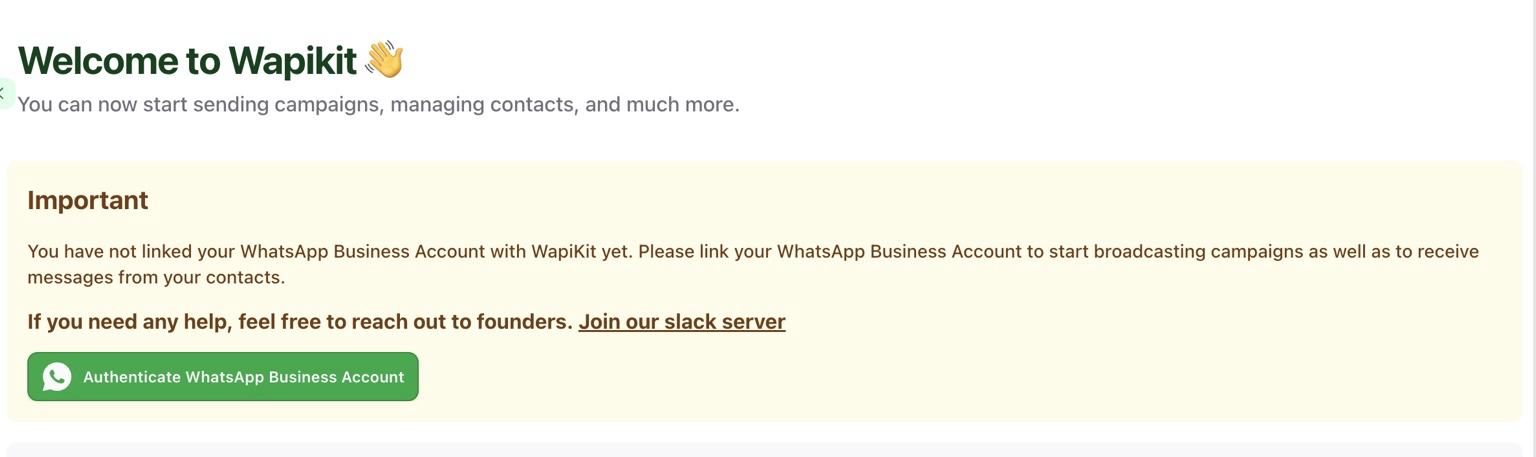
On the dashboard, you'll see a prompt to authenticate your WhatsApp Business Account.
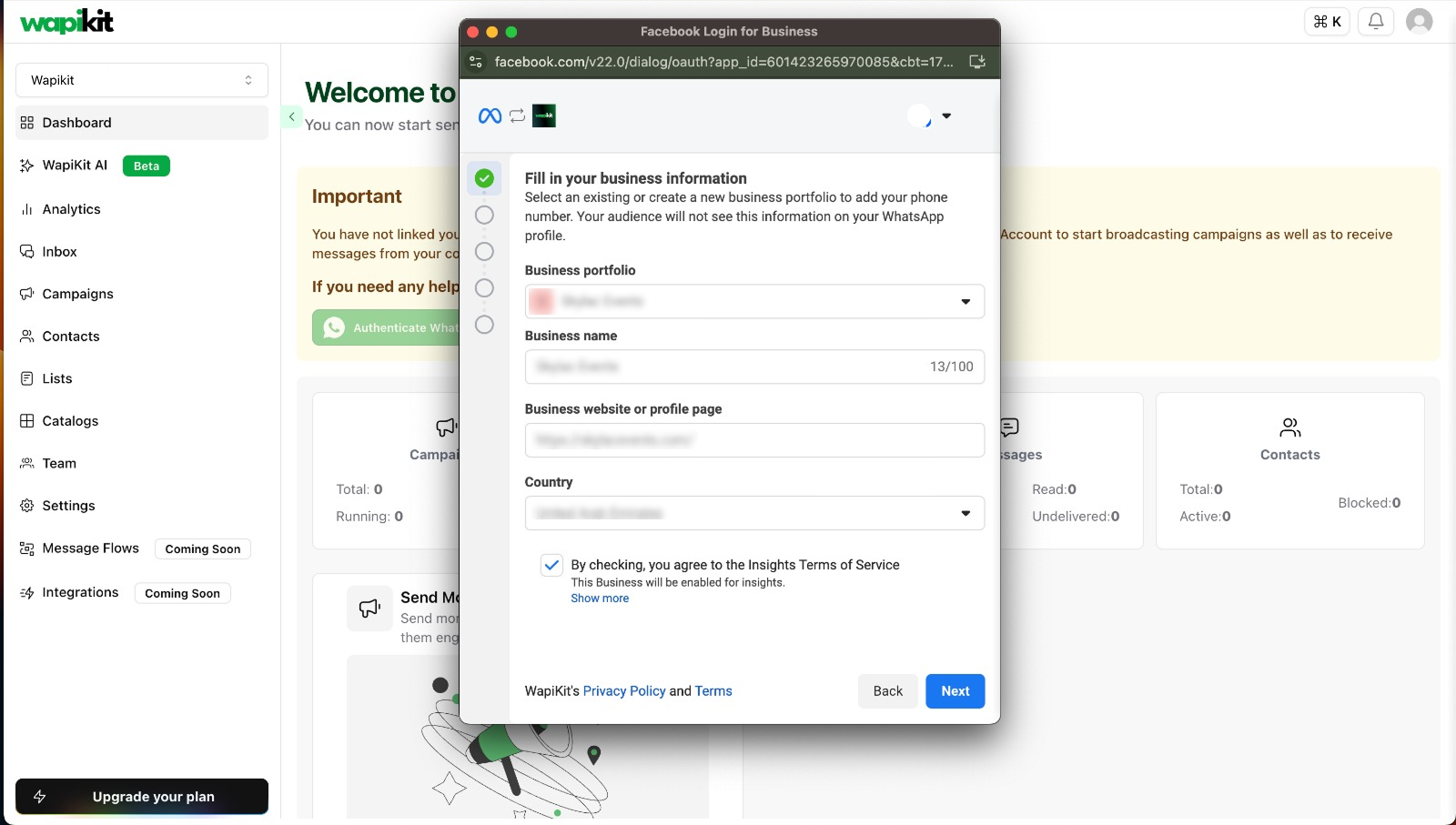
 A Facebook popup will appear. Select an existing portfolio or create a new one.
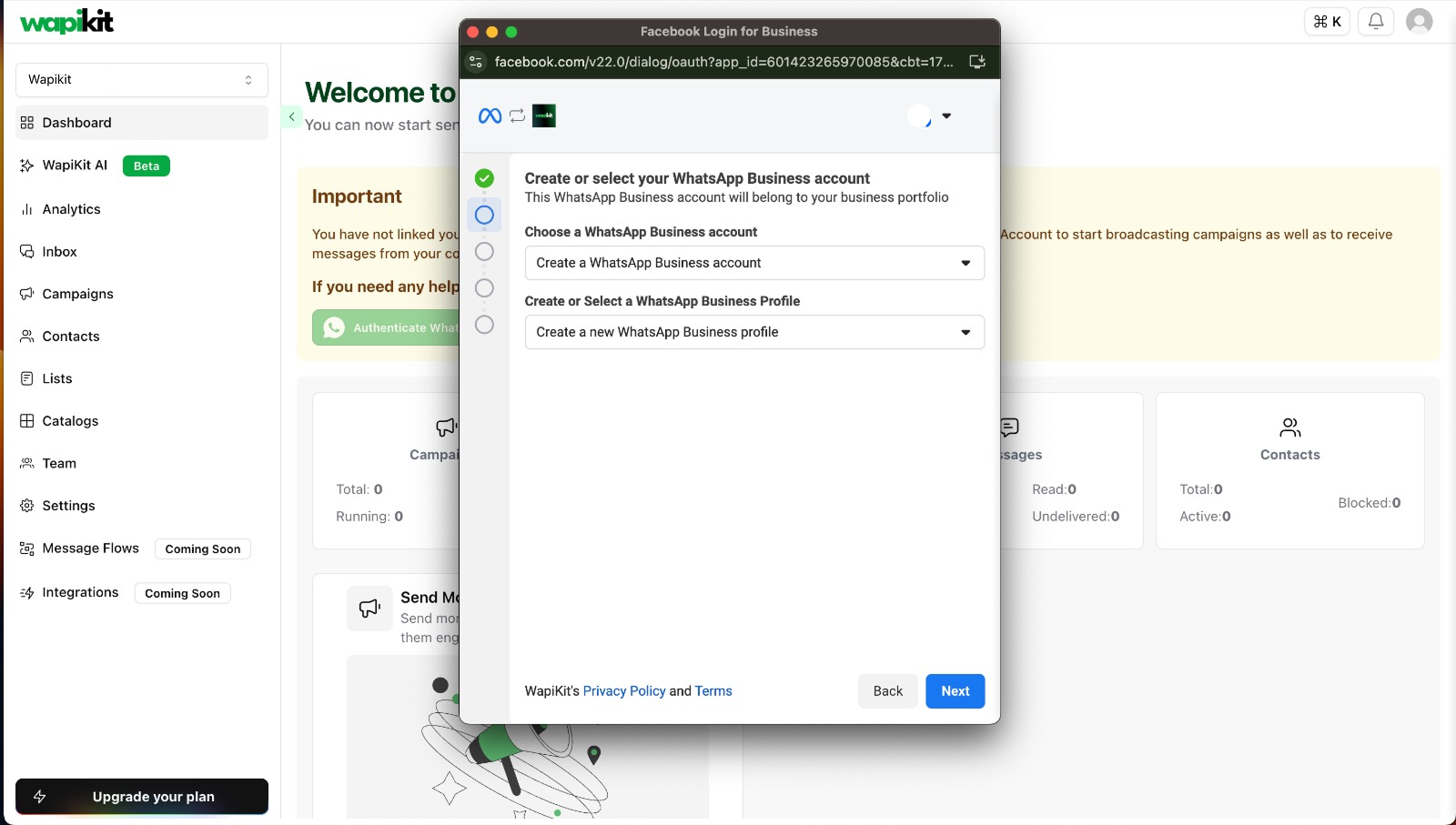
 * Select an existing WhatsApp Business account
* Or create a new one along with a new Business Profile
* Select an existing WhatsApp Business account
* Or create a new one along with a new Business Profile
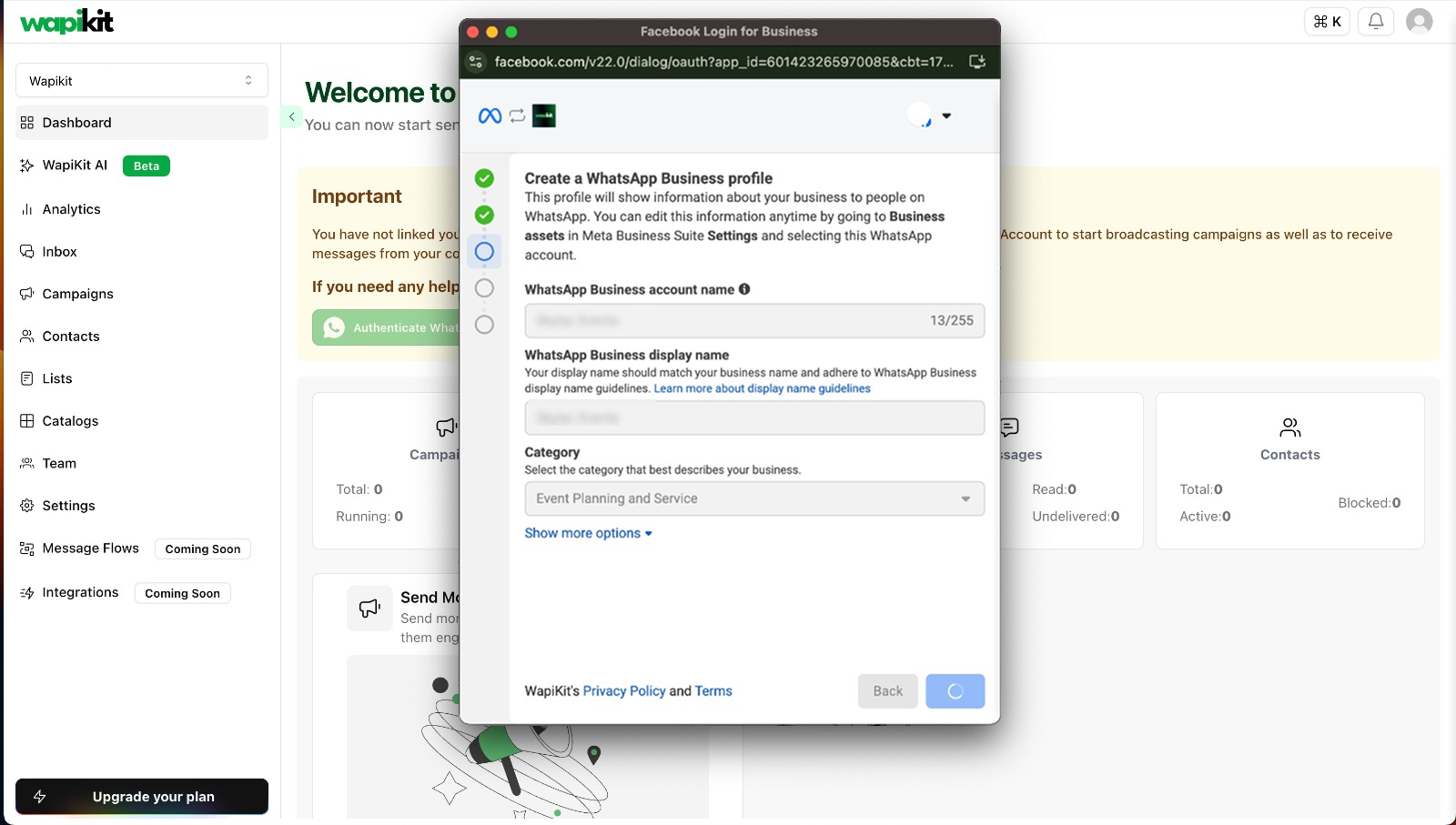
 Add your account name, display name, and choose a business category.\
Ensure your display name follows the WhatsApp Display Name Policy.
Add your account name, display name, and choose a business category.\
Ensure your display name follows the WhatsApp Display Name Policy.
 The number must not be in use on any existing WhatsApp app (personal or business). It must be an isolated number to be used only with WhatsApp Cloud API.
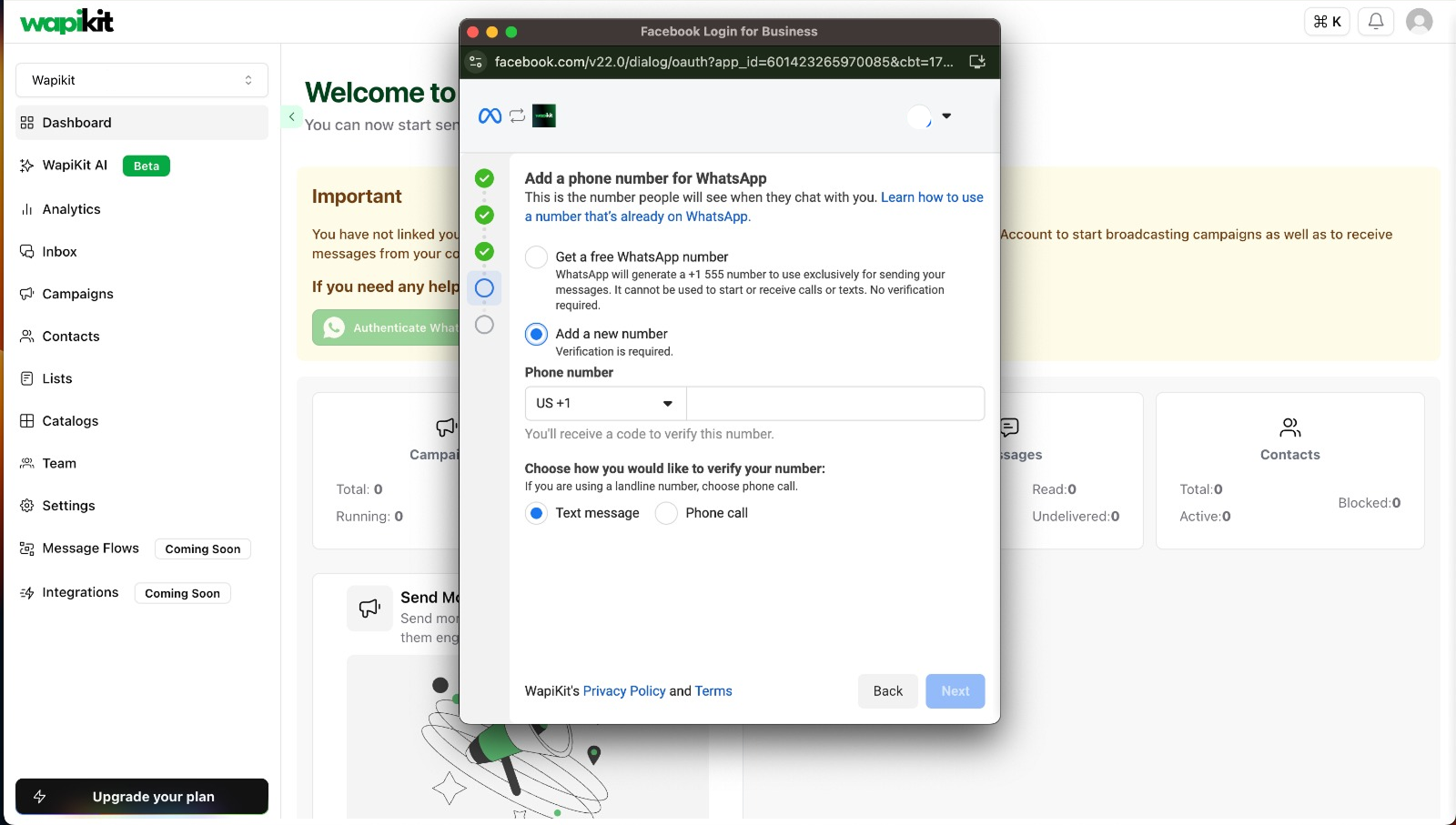
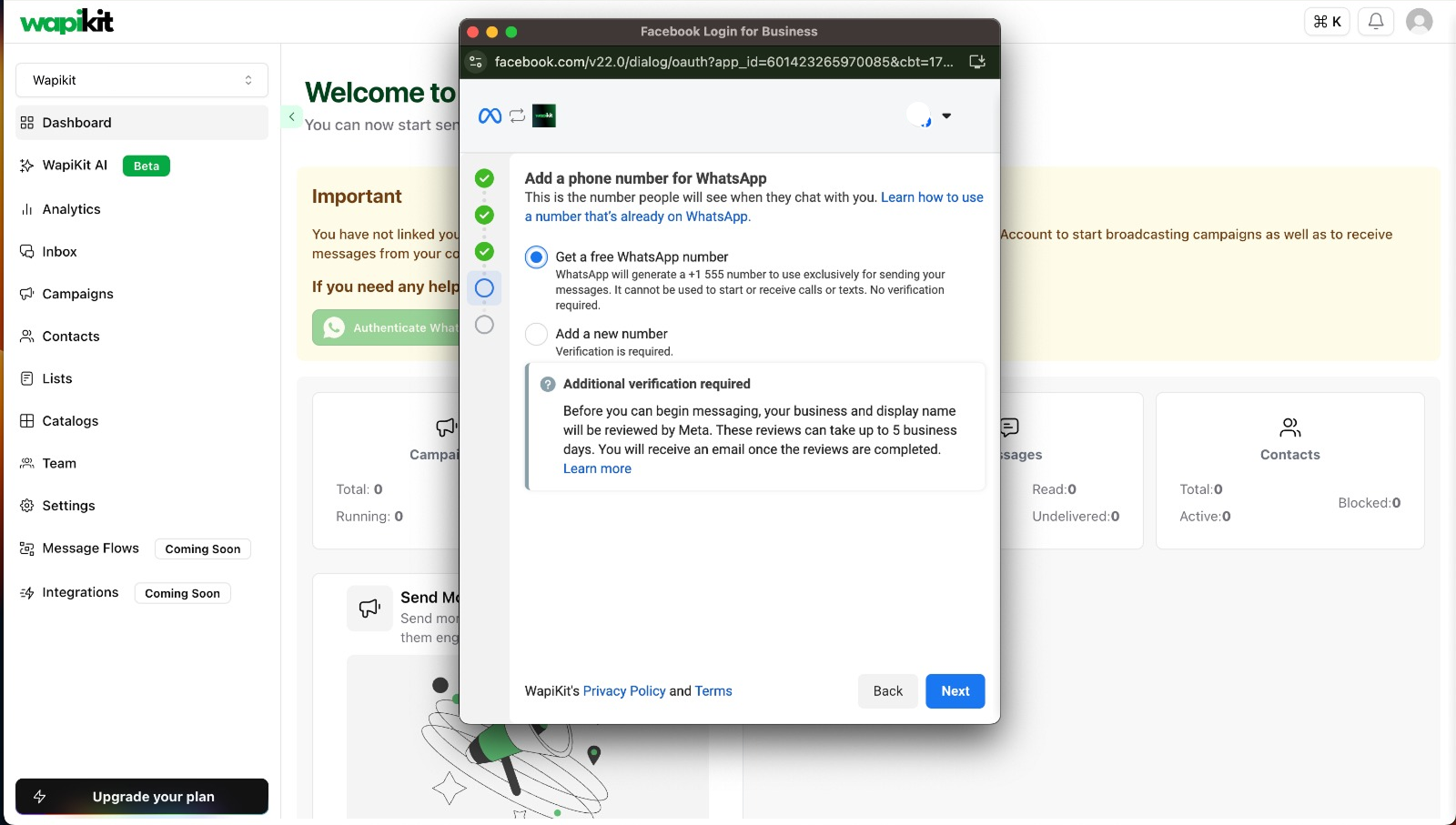 If you're adding a new number, Meta will send a verification code via SMS or call.
 You’re now ready to chat with people on WhatsApp!
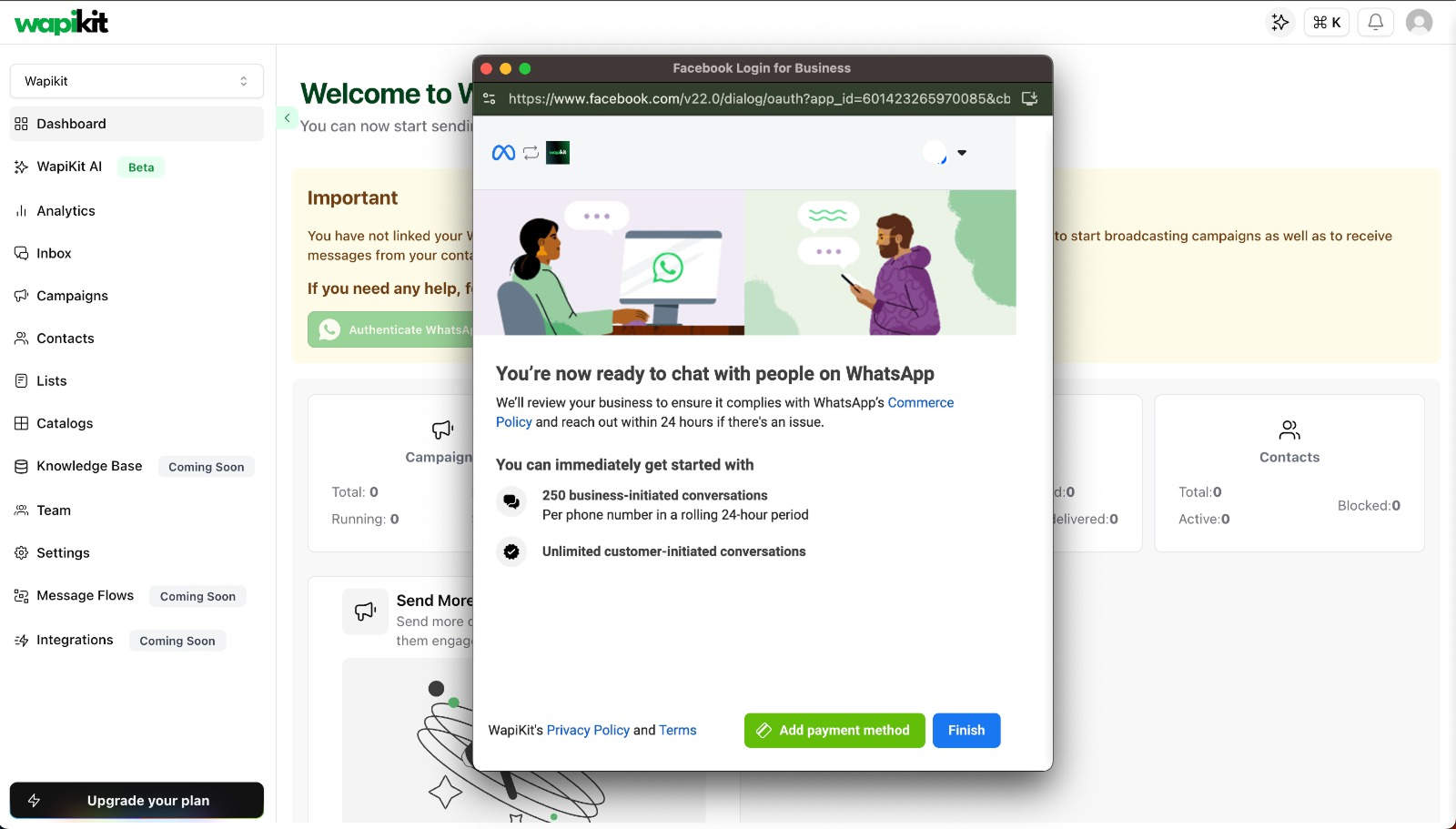
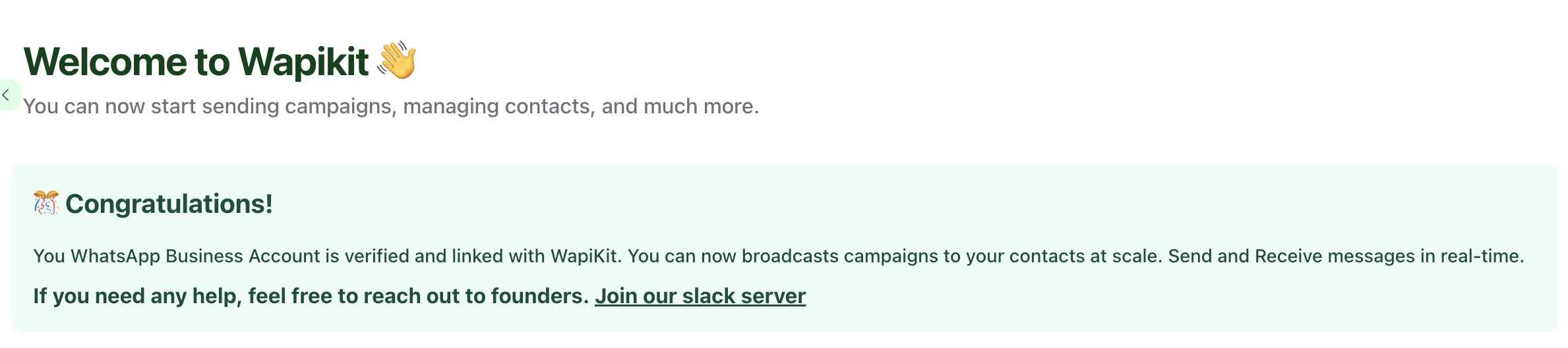 You can immediately start with:
* 250 business-initiated conversations/day
* Unlimited customer-initiated conversations
***
## 📌 Important Notes
* Meta may take up to 5 business days to approve your WhatsApp Business display name.
* You'll be notified by email once verified.
* You can still send messages during this review under limited quota.
If you face any issues during this flow, feel free to reach out to the Wapikit team or join our Slack community.
You can immediately start with:
* 250 business-initiated conversations/day
* Unlimited customer-initiated conversations
***
## 📌 Important Notes
* Meta may take up to 5 business days to approve your WhatsApp Business display name.
* You'll be notified by email once verified.
* You can still send messages during this review under limited quota.
If you face any issues during this flow, feel free to reach out to the Wapikit team or join our Slack community.